What the Security Dashboard does
Keeping track of security advisories is hard, especially if you look after more than one Umbraco site. The Umbraco Security Dashboard, a free, open-source package by Blend Interactive, does the checking for you:
- Scans automatically, every day by default. It compares the Umbraco packages your site is actually running against the GitHub Advisory Database.
- Checks your real exposure. Some advisories only matter if a feature is switched on. For example, if an advisory affects the Content Delivery API but you've disabled it, the dashboard marks you as Mitigated rather than vulnerable, so you can focus on what really matters.
- Reports centrally. After every scan it can post the result to a webhook. Tools like n8n or Zapier can then collect the status of all your sites in one place.
- Keeps an audit history of every check.
You'll find it on the Umbraco Marketplace. It's MIT licensed, and the source is on GitHub.
Step 1: Install the package
From the folder that contains your Umbraco project's .csproj file, run:
dotnet add package BlendInteractive.Umbraco.SecurityDashboardIf your solution uses central package management (a Directory.Packages.props file, as new Umbraco projects do), add the version there and a reference in your .csproj:
<PackageVersion Include="BlendInteractive.Umbraco.SecurityDashboard" Version="18.0.1" /><PackageReference Include="BlendInteractive.Umbraco.SecurityDashboard" />Build and restart your site. There's nothing else to set up to get started.
Step 2: Open Security Health
- Log in to the backoffice and go to the Settings section.
- Open the Security Health dashboard. If you can't see it, click the … at the end of the dashboard tabs; it may be tucked in the overflow menu.
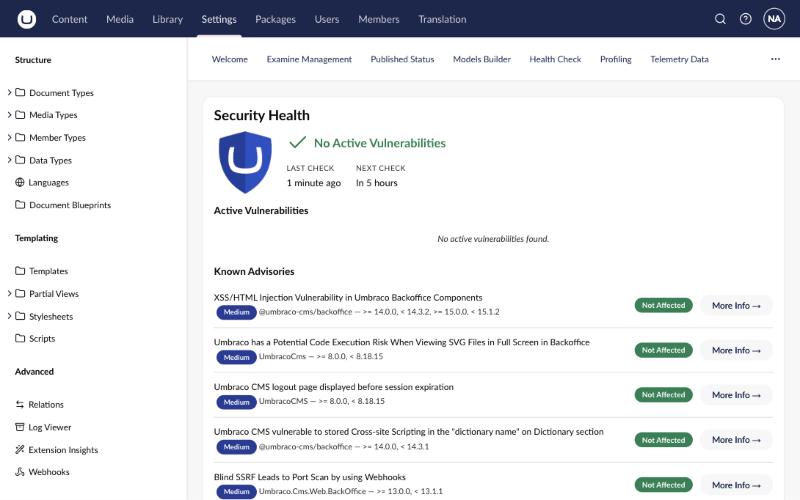
The first scan runs when the site starts. Here's what it showed on umbraco.ninja, running Umbraco 18.2.2:
Reading the results
- Status: the large indicator at the top shows whether any active vulnerabilities were found.
- Last check / Next check: when the site was last scanned, and when the next scheduled scan runs.
- Active Vulnerabilities: advisories that affect the versions you're running and that you're exposed to. This is your to-do list.
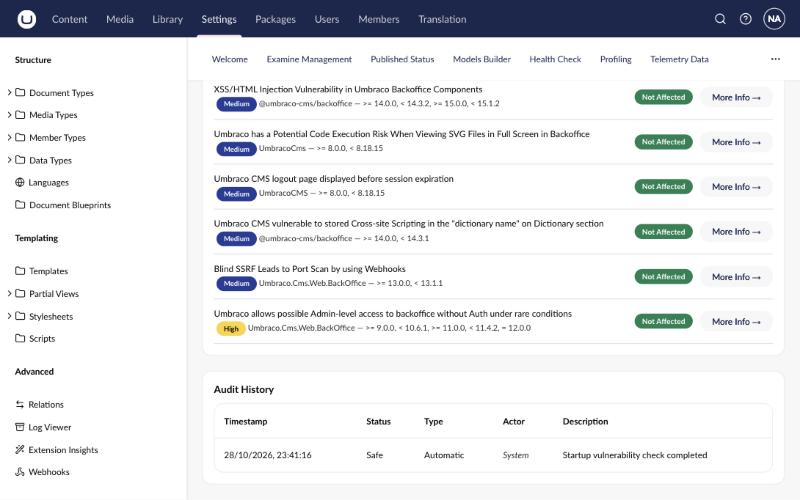
- Known Advisories: every advisory the dashboard knows about for your packages. Each shows a severity (Medium, High and so on), the affected package and version ranges, and a verdict: Not Affected, Mitigated or Vulnerable. More Info opens the full advisory on GitHub.
- Audit History: a log of every check, with its result and what triggered it.
Step 3: Choose when scans run
Scans run daily at 4:00 AM server time by default. Change this in appsettings.json:
{
  "Umbraco": {
    "SecurityDashboard": {
      "ScanSchedule": {
        "Frequency": "Daily",
        "Hour": 2,
        "Minute": 30
      }
    }
  }
}
Frequency can be Daily, Weekly (add "DayOfWeek": "Monday") or Disabled. Only use Disabled on development or staging sites, as the dashboard will show a warning.
Step 4: Report to a central place with a webhook
Looking after several sites? Have each one report its status after every scan:
{
  "Umbraco": {
    "SecurityDashboard": {
      "Webhook": {
        "SiteUrl": "https://www.example.com",
        "EndpointUrl": "https://hooks.example.com/umbraco-security",
        "Secret": "set-this-outside-source-control",
        "TimeoutSeconds": 10
      }
    }
  }
}SiteUrlidentifies which site sent the report.EndpointUrlis where results are posted. Leave it empty to turn the webhook off.Secretis sent with each request so your endpoint can check the report is genuine.
The package's GitHub repository includes an example n8n workflow that writes every report to a Google Sheet. Zapier or a small Azure Function work just as well.
Step 5: Scan more than Umbraco packages
By default the dashboard checks Umbraco packages. Add any other NuGet packages your site depends on, and their versions are picked up automatically:
{
  "Umbraco": {
    "SecurityDashboard": {
      "AdditionalPackageIds": [ "Serilog", "Newtonsoft.Json" ]
    }
  }
}
For developers: add your own exposure checks
Exposure checks decide whether an advisory really affects your site. Two are built in: whether the Content Delivery API is enabled, and whether any non-admin backoffice users exist. You can add your own by implementing IExposureCheck:
using Umbraco.SecurityDashboard.Services.Exposure;

public class PublicRegistrationExposureCheck : IExposureCheck
{
    // Runs only when this keyword appears in an advisory's description.
    public string Keyword => "Member Registration";

    public Task<ExposureVerdict> CheckAsync(CancellationToken cancellationToken = default)
    {
        bool registrationOpen = true; // replace with your own logic
        return Task.FromResult(registrationOpen ? ExposureVerdict.Vulnerable : ExposureVerdict.Mitigated);
    }
}
Then register it in a composer or Program.cs:
builder.AddExposureCheck<PublicRegistrationExposureCheck>();What it doesn't do
The Security Dashboard is a great early-warning system, but it isn't a complete security programme:
- It depends on the GitHub Advisory Database, which can lag behind Umbraco's own announcements. When we wrote this guide, Umbraco's security advisory of 27 October 2026 hadn't appeared in the dashboard yet. Keep an eye on Umbraco's security advisories too.
- It doesn't patch anything. It tells you what's wrong; you still need to upgrade.
- It doesn't check your own code, server configuration or hosting, which is where a penetration test helps.
Need a hand?
umbraco.ninja has more than 20 years of Umbraco experience. If you'd rather not do this yourself, we'll set it up, test it and hand it over.
Get a fixed-price quote