What we'll build
A text box with a live character counter that warns editors when a meta description is getting too long. The warning limit is a setting editors can change on the data type.
A property editor has two halves:
- The UI: what editors see, written as a web component. That's what we'll build.
- The schema: how the value is stored and validated. We'll reuse Umbraco's built-in
Umbraco.Plain.String, so no C# is needed.
Step 1: Register it
{
  "$schema": "../../../umbraco-package-schema.json",
  "name": "Character Counter",
  "version": "1.0.0",
  "extensions": [
    {
      "type": "propertyEditorUi",
      "alias": "MySite.PropertyEditorUi.CharacterCounter",
      "name": "Character Counter Textbox",
      "element": "/App_Plugins/CharacterCounter/character-counter.js",
      "meta": {
        "label": "Character Counter",
        "icon": "icon-autofill",
        "group": "common",
        "propertyEditorSchemaAlias": "Umbraco.Plain.String",
        "settings": {
          "properties": [
            {
              "alias": "maxChars",
              "label": "Recommended maximum",
              "description": "Show a warning once the text is longer than this.",
              "propertyEditorUiAlias": "Umb.PropertyEditorUi.Integer"
            }
          ],
          "defaultData": [ { "alias": "maxChars", "value": 160 } ]
        }
      }
    }
  ]
}
Step 2: The element
import { LitElement, html, css } from "@umbraco-cms/backoffice/external/lit";
import { UmbElementMixin } from "@umbraco-cms/backoffice/element-api";
import { UmbChangeEvent } from "@umbraco-cms/backoffice/event";

export class CharacterCounterElement extends UmbElementMixin(LitElement) {
    static properties = {
        value: { type: String },
        _max: { state: true },
    };

    constructor() {
        super();
        this.value = "";
        this._max = 160;
    }

    // Umbraco passes the data type's settings in here
    set config(config) {
        this._max = Number(config?.getValueByAlias("maxChars") ?? 160);
    }

    #onInput(e) {
        this.value = e.target.value;
        this.dispatchEvent(new UmbChangeEvent());
    }

    render() {
        const length = (this.value ?? "").length;
        const over = length > this._max;
        return html`
            <uui-input .value=${this.value ?? ""} @input=${this.#onInput} label="Text"></uui-input>
            <div class="count ${over ? "over" : ""}">${length} / ${this._max} characters${over ? " (too long)" : ""}</div>
        `;
    }

    static styles = css`
        uui-input { width: 100%; }
        .count { margin-top: 4px; font-size: 12px; color: var(--uui-color-text-alt); }
        .count.over { color: var(--uui-color-danger); font-weight: 600; }
    `;
}

customElements.define("character-counter-editor", CharacterCounterElement);
export default CharacterCounterElement;
The contract is small:
- Umbraco sets
value, which holds the saved value, andconfig, which holds the data type settings. - When the editor changes the value, set
this.valueand dispatch anUmbChangeEvent, so Umbraco knows there's something to save.
Step 3: Use it in a data type
- Restart the site.
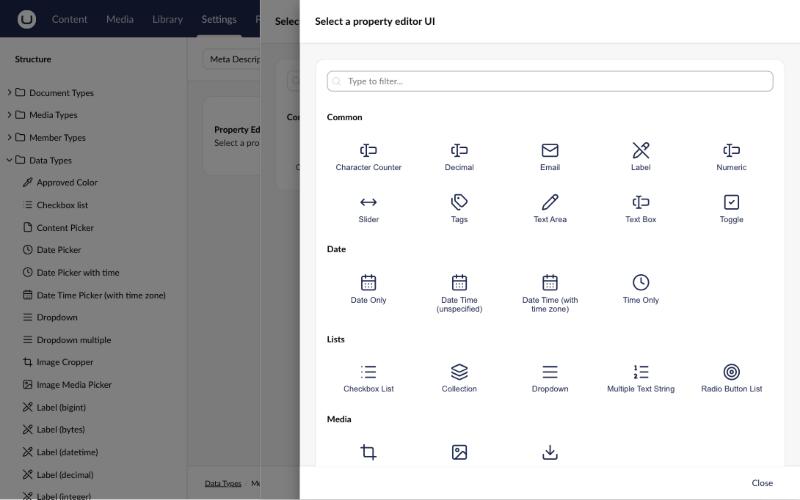
- Go to Settings › Data Types › + › Data Type, name it, and click Select a property editor. Your editor appears in the Common group:
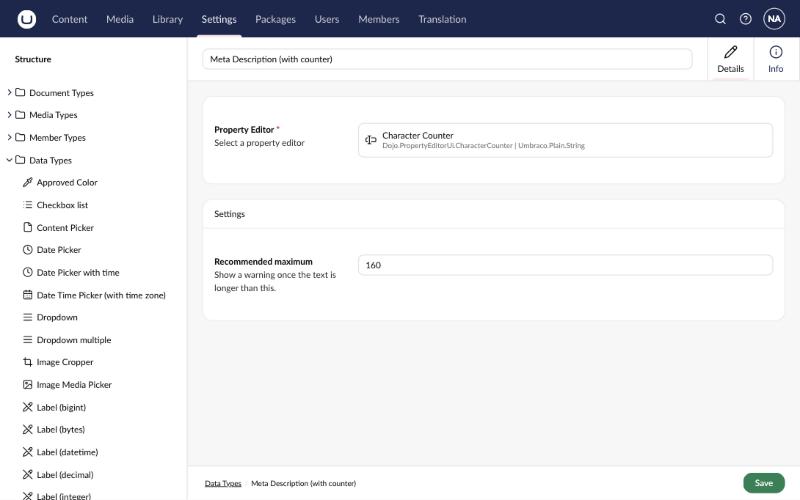
- Select it. Its Recommended maximum setting appears with the default of 160:
- Save, then add a property using the new data type to any document type.
Going further
- Server-side validation or a custom stored format: create your own
DataEditorin C# and pointpropertyEditorSchemaAliasat its alias. - TypeScript: scaffold an extension project with
dotnet new umbraco-extension, which sets up TypeScript and Vite for you.
Need a hand?
umbraco.ninja has more than 20 years of Umbraco experience. If you'd rather not do this yourself, we'll set it up, test it and hand it over.
Get a fixed-price quote