How backoffice extensions work since Umbraco 14
The backoffice was rebuilt with web components. You extend it by registering extensions in a JSON manifest called umbraco-package.json. Each extension points at a JavaScript module. No build tools are needed for simple extensions, although TypeScript and Vite are recommended for bigger ones.
Step 1: Create the manifest
Create wwwroot/App_Plugins/TeamWelcome/umbraco-package.json:
{
  "$schema": "../../../umbraco-package-schema.json",
  "name": "Team Welcome",
  "version": "1.0.0",
  "extensions": [
    {
      "type": "dashboard",
      "alias": "MySite.Dashboard.TeamWelcome",
      "name": "Team Welcome Dashboard",
      "element": "/App_Plugins/TeamWelcome/welcome-dashboard.js",
      "weight": 100,
      "meta": {
        "label": "Team Welcome",
        "pathname": "team-welcome"
      },
      "conditions": [
        { "alias": "Umb.Condition.SectionAlias", "match": "Umb.Section.Content" }
      ]
    }
  ]
}conditionsdecides where it appears. Here, it's the Content section.- A higher
weightplaces it further left among the dashboard tabs.
Step 2: Create the web component
import { LitElement, html, css } from "@umbraco-cms/backoffice/external/lit";
import { UmbElementMixin } from "@umbraco-cms/backoffice/element-api";
import { UMB_CURRENT_USER_CONTEXT } from "@umbraco-cms/backoffice/current-user";

export class TeamWelcomeDashboard extends UmbElementMixin(LitElement) {
    static properties = { _name: { state: true } };

    constructor() {
        super();
        this._name = "";
        // Read the signed-in user from the backoffice context
        this.consumeContext(UMB_CURRENT_USER_CONTEXT, (context) => {
            this.observe(context?.currentUser, (user) => (this._name = user?.name ?? ""));
        });
    }

    render() {
        return html`
            <uui-box headline="Welcome back${this._name ? `, ${this._name}` : ""}">
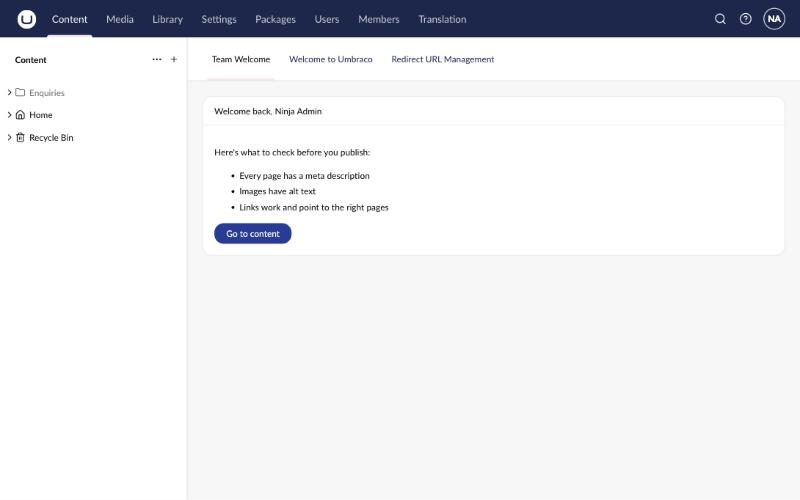
                <p>Here's what to check before you publish:</p>
                <ul>
                    <li>Every page has a meta description</li>
                    <li>Images have alt text</li>
                    <li>Links work and point to the right pages</li>
                </ul>
                <uui-button look="primary" href="/umbraco/section/content">Go to content</uui-button>
            </uui-box>
        `;
    }

    static styles = css`
        :host { display: block; padding: var(--uui-size-layout-1); }
        ul { line-height: 1.8; }
    `;
}

customElements.define("team-welcome-dashboard", TeamWelcomeDashboard);
export default TeamWelcomeDashboard;- Import Lit from
@umbraco-cms/backoffice/external/lit. The backoffice provides it, so there's nothing to install. uui-boxanduui-buttoncome from the Umbraco UI Library, so your dashboard matches the backoffice.- The module must
export defaultthe element class.
Step 3: Restart and look
Restart the site, reload the backoffice and open Content. Your dashboard appears as a tab:
Troubleshooting
- Not showing? Check Settings › Extension Insights to see whether Umbraco loaded your extension, and look for errors in the browser console (F12).
- Changes not appearing: hard-refresh the backoffice (Ctrl/Cmd + Shift + R). Manifests are read when the site starts, so restart after editing the JSON.
- Only for some users: add a condition such as
Umb.Condition.CurrentUser.IsAdmin.
Need a hand?
umbraco.ninja has more than 20 years of Umbraco experience. If you'd rather not do this yourself, we'll set it up, test it and hand it over.
Get a fixed-price quote