What you can do
Umbraco builds each page's URL from its name and its place in the content tree. A page called "About us" under "Company" lives at /company/about-us/. You can change that in three ways:
- Change a page's URL without renaming it, using
umbracoUrlName. - Give a page extra URLs, such as a short campaign URL, using
umbracoUrlAlias. - Give part of your site its own domain, such as
offers.example.comfor an offers section, using Culture and Hostnames, plus a DNS record that points the domain at your server.
Part 1: Change a page's URL with umbracoUrlName
Sometimes the page name editors see isn't the URL you want. For example, a page called "Frequently asked questions" might work better as /faq/.
Add the property to your document type
- Go to Settings › Document Types and open the document type, for example "Content Page".
- Add a property. We put ours in an SEO group.
- Give it any name, but set the alias to exactly
umbracoUrlName, and use the Textstring editor. - Save the document type.
Use it on a page
- Open the page in the Content section and scroll to the group that holds the new field.
- Type the URL segment you want, for example
faq. Use lowercase letters, numbers and hyphens, with no slashes. - Save and publish. The page now lives at
/faq/, and Umbraco's Redirect URL Management automatically redirects the old URL.
Part 2: Give a page extra URLs with umbracoUrlAlias
A URL alias adds extra addresses for a page, while its main URL stays the same. It's perfect for short URLs on print, radio or social campaigns, such as /winter/ for a long seasonal offer page.
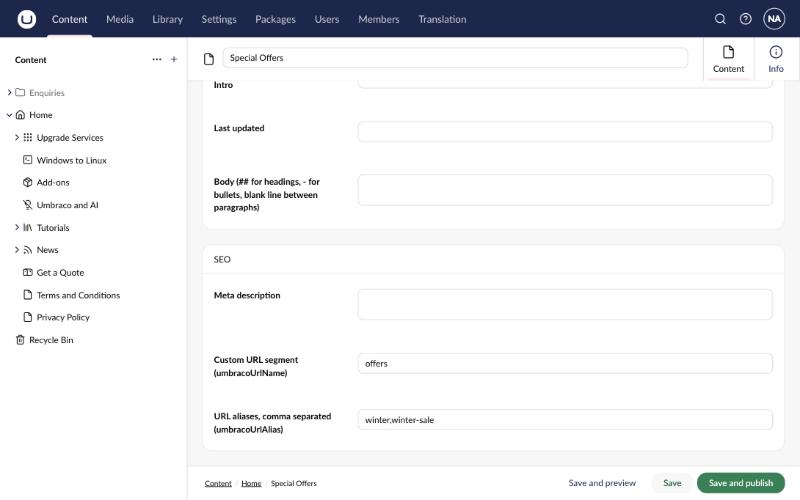
- Add another Textstring property to the document type, with the alias
umbracoUrlAlias. - On the page, enter one or more paths, separated by commas, with no leading or trailing slash, for example
winter,winter-sale. - Save and publish.
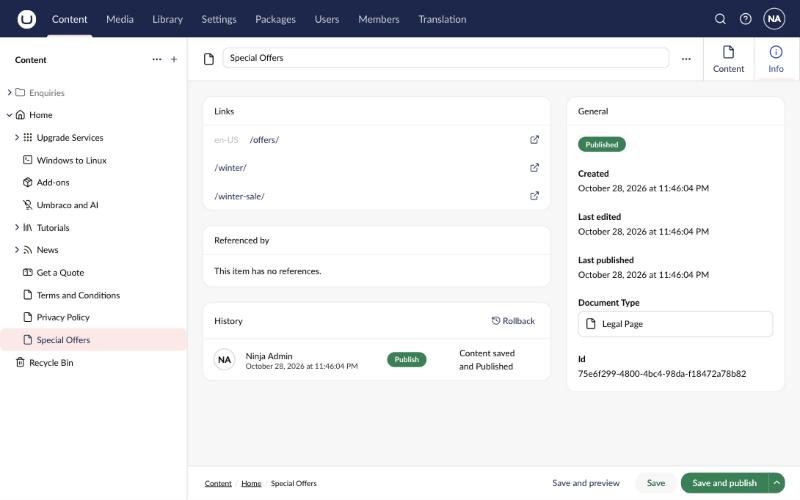
You can check a page's URLs at any time on its Info tab, under Links. Here, the "Special Offers" page now lives at /offers/, and also answers on /winter/ and /winter-sale/:
Part 3: A different domain for a section of your site
Say your main site is example.com and you want the "Special Offers" section to have its own domain, offers.example.com. There are four steps, and they need to happen in this order:
- DNS: point the domain at your server.
- Hosting: tell your web server or host to accept the domain.
- HTTPS: add a certificate for the domain.
- Umbraco: assign the domain to the page with Culture and Hostnames.
Step 1: Point DNS at your server
Log in to wherever your domain's DNS is managed (your registrar, Cloudflare, Azure DNS, Route 53 and so on) and add a record for the new domain.
Use a CNAME if your host gives you a hostname, which is common with Azure App Service, Umbraco Cloud and most cloud hosts. Use an A record if you have a fixed server IP address.
# Main domain -> your server's IP address
example.com.           A       203.0.113.10
www.example.com.       CNAME   example.com.

# The new section's domain -> same server
offers.example.com.    CNAME   example.com.

# Azure App Service example instead:
# offers.example.com.        CNAME   your-site.azurewebsites.net.
# asuid.offers.example.com.  TXT     <verification id from the Azure portal>
DNS changes can take anywhere from a few minutes to 48 hours to reach everyone, depending on the record's TTL. Check that the domain points through before you move on:
# Mac / Linux
dig +short offers.example.com

# Windows
nslookup offers.example.com
You should see your server's IP address, or your host's hostname followed by its IP. If nothing comes back, the record hasn't spread yet or contains a typo.
Step 2: Tell your web server about the domain
DNS gets visitors to your server, but your server must also accept the domain. Otherwise visitors see a default page or an error.
- IIS (Windows): open IIS Manager, select your site, choose Bindings…, and add
offers.example.comon ports 80 and 443. - nginx (Linux): add the domain to
server_name, then runsudo nginx -t && sudo systemctl reload nginx. - Azure App Service: open Custom domains, choose Add custom domain, and follow the verification steps.
- Umbraco Cloud: open your project in the Umbraco Cloud Portal, find the environment's Hostnames settings, and add the domain.
server {
    listen 443 ssl;
    server_name example.com offers.example.com;
    # ...rest of your Umbraco proxy configuration
}
Step 3: Add HTTPS
Every domain needs its own certificate, or one that covers it. Azure App Service and Umbraco Cloud can issue free certificates for you. On your own server, Let's Encrypt is free:
sudo certbot --nginx -d example.com -d www.example.com -d offers.example.comStep 4: Assign the domain in Umbraco
Now tell Umbraco which page the domain belongs to.
- In the Content section, open the page that should be the root of the new domain (here, "Special Offers").
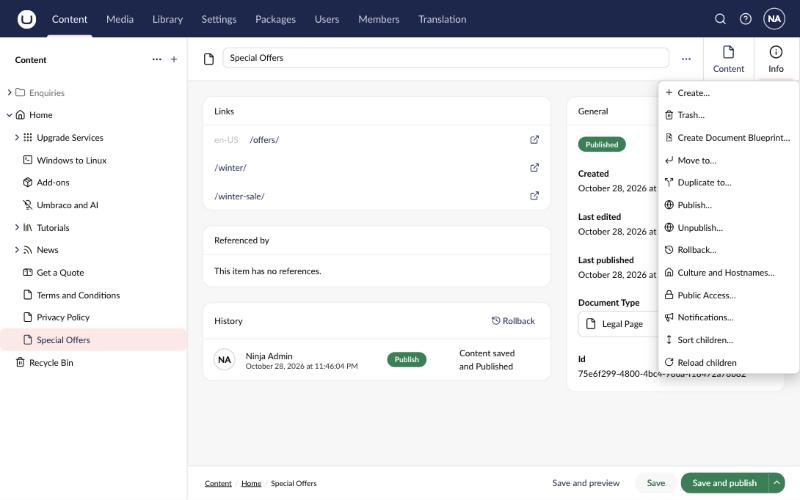
- Click the … (actions) button at the top right of the editor. You can also hover over the page in the content tree and click its … button.
- Choose Culture and Hostnames….
- Under Hostnames, click Add new hostname. Enter
offers.example.comand choose the language, for example English (United States). - Click Save.
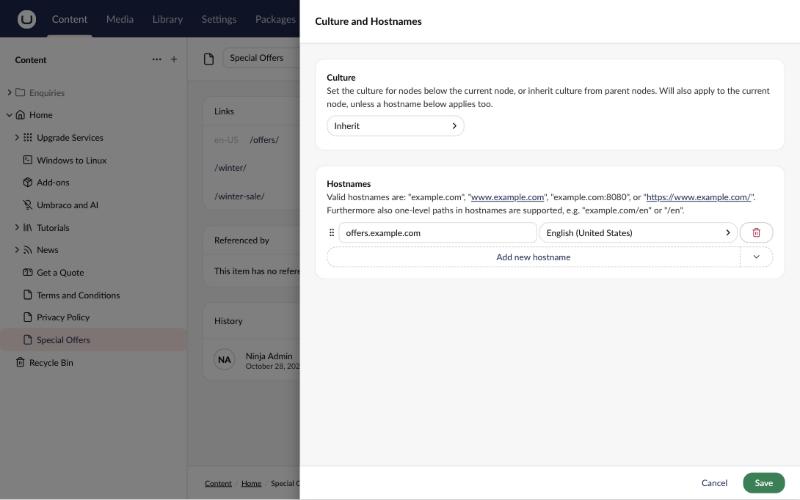
Visiting https://offers.example.com/ now shows the Special Offers page, and its child pages live under the new domain, for example https://offers.example.com/winter-deal/.
Tell Umbraco its main address
Umbraco sometimes needs to build full URLs when there's no web request to take them from, for example in scheduled jobs or emails. Set the main URL in appsettings.json:
{
  "Umbraco": {
    "CMS": {
      "WebRouting": {
        "UmbracoApplicationUrl": "https://example.com/"
      }
    }
  }
}
Check everything works
- Run
digornslookupagain to confirm DNS points at your server. - Visit
https://offers.example.com/. You should see the right page and a valid padlock. - Open the page's Info tab in Umbraco. Links should now show the new domain.
- Check that
https://example.com/special-offers/still works, or redirect it to the new domain if you only want one address.
Troubleshooting
- "This site can't be reached": DNS isn't pointing through yet. Check the record and wait for the TTL to expire.
- Default web server page, or a 404 for the whole domain: the domain is missing from your IIS bindings, nginx
server_nameor host's custom domains. - Certificate warning: the certificate doesn't cover the new domain. Reissue it with the domain included.
- The domain shows the home page instead of the section: the domain hasn't been added in Culture and Hostnames, or it was added to the wrong page.
- Links point at the wrong domain: add the main domain to your home page too, and set
UmbracoApplicationUrl.
Need a hand?
umbraco.ninja has more than 20 years of Umbraco experience. If you'd rather not do this yourself, we'll set it up, test it and hand it over.
Get a fixed-price quote